
Introduction
Seedance 2.0 is the AI video generation model from ByteDance's Seed team. It is built on a unified multimodal audio-video architecture, so it accepts text, images, video and audio as input and can generate video with synchronized sound. It offers three ways to create: text-to-video, image-to-video and reference-to-video.
This guide walks through all three modes on PoloX AI, explains every setting, and shows how the PoloX Studio agent can write the prompt and choose the settings for you.
Where to Find Seedance 2.0 on PoloX AI
All three Seedance 2.0 modes live in the generator at the top of the PoloX AI home page. In Classic mode, open the model picker, choose Video under Type, pick Text to Video, Image to Video or Reference to Video under Task, then select Seedance 2.0 under Model. The picker then shows your current model and mode, for example "Seedance 2.0 · Video · Text to Video", and the settings below it update to match.
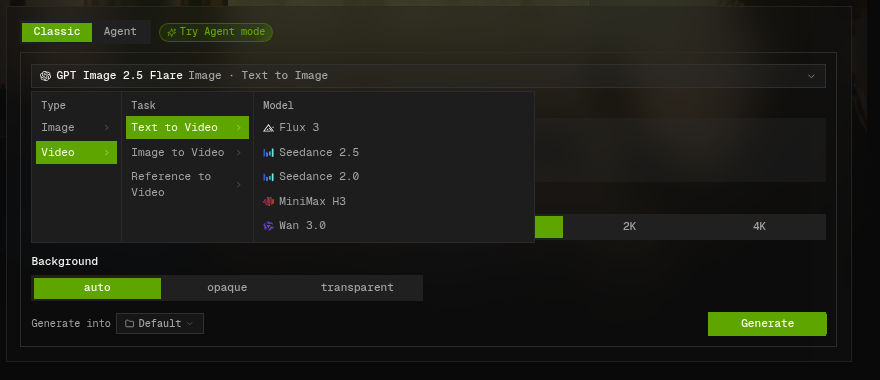
Open the model picker, choose Video under Type, pick a task, then select Seedance 2.0 under Model.
Seedance 2.0 Text-to-Video
Text-to-video creates a clip from a written prompt alone, with nothing to upload. It is the natural starting point when you are working from scratch, whether that is a rough idea, a storyboard description or a one-line ad concept you want to see on screen.
The more specific the prompt, the more control you have. Describe who the subject is, what they are doing and where, then add the camera movement, visual style, lighting and mood you want. With audio turned on, Seedance 2.0 also generates sound that matches the picture.
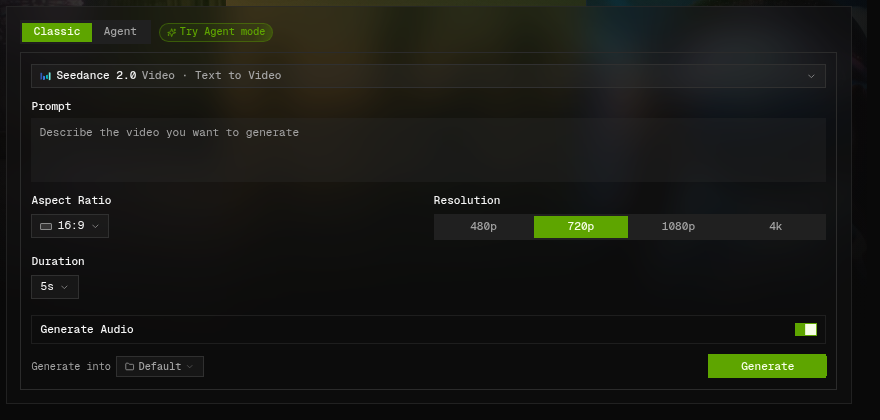
Seedance 2.0 text-to-video settings. Defaults: 16:9, 720p, 5 seconds, audio on.
Seedance 2.0 text-to-video supports these settings:
Prompt: Required. 3 to 20,000 characters describing the video you want.
Aspect Ratio: 16:9, 9:16, 1:1, 4:3, 3:4, 21:9 or adaptive. Default: 16:9.
Resolution: 480p, 720p, 1080p or 4k. Default: 720p. 480p is the fastest, and 4k gives the highest quality.
Duration: 4 to 15 seconds, in 1-second steps. Default: 5 seconds.
Generate Audio: On by default. Adds synchronized audio to the video.
Seedance 2.0 Image-to-Video
Image-to-video animates a still image. A first frame is required and a last frame is optional. Seedance 2.0 starts from your first frame and sets it in motion, following the action and camera direction in your prompt. If you add a last frame, the clip ends on a shot that matches it. Use this mode to bring an existing picture to life or to build a precise transition between two images.
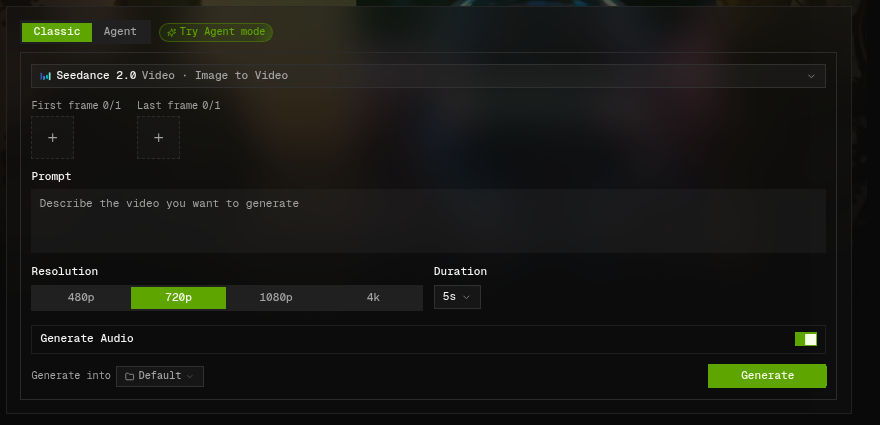
Image-to-video has First frame and Last frame upload slots and no aspect ratio setting.
Seedance 2.0 image-to-video supports these settings:
Prompt: Required. Describe how the scene should move and change.
First Frame: Required. One image in JPEG, PNG, WEBP, GIF or BMP format, up to 30 MB.
Last Frame: Optional. One image with the same format and size limits. Use it when the final frame has to match a specific image.
Resolution: 480p, 720p, 1080p or 4k. Default: 720p.
Duration: 4 to 15 seconds. Default: 5 seconds.
Generate Audio: On by default.
There is no aspect ratio setting in this mode. The video follows the aspect ratio of the image you upload.
Seedance 2.0 Reference-to-Video
Reference-to-video is what really sets Seedance 2.0 apart. You can upload several images, video clips and audio clips at once as reference material, then use the prompt to explain how each one should be used. The model combines them into a brand-new video. According to ByteDance's official documentation, each type of reference does a different job:
Reference images carry over characters, visual style and composition.
Reference videos carry over the subject, camera movement, action and overall style.
Reference audio carries over voice timbre, melody and dialogue.
For example, you could upload a character image, a dance clip and a music track, then write: "Make the character from Image1 dance with the moves from Video1, using Audio1 as the background music."
Reference-to-Video vs. First and Last Frames
Image-to-video uses your image as the exact first frame (and last frame, if you add one), so the clip starts from that picture. Reference-to-video instead pulls characters, style, motion and other details from your references and creates new shots, so the original material will not necessarily appear as it is. You can ask in the prompt for a reference image to be used as the first or last frame, but the official documentation notes that this is only approximate. If the opening or closing frame must match your image exactly, use image-to-video.
How to Reference Your Files in the Prompt
Refer to each upload by its type plus a number, where the number is its upload order within that type. The first image is Image1 (or @Image1), the second image is Image2, the first video is Video1, and the first audio clip is Audio1. Written this way, the model knows exactly which file each instruction is about.
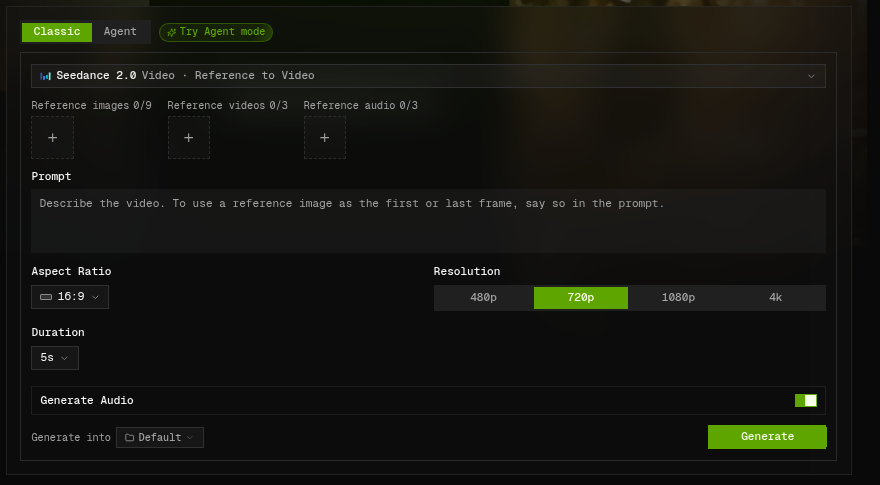
Reference-to-video accepts up to 9 reference images, 3 reference videos and 3 reference audio clips.
Seedance 2.0 reference-to-video supports these settings:
Prompt: Required. Describe the video you want and explain what each reference is for. If you want a reference image used as the first or last frame, say so here.
Reference Images: Up to 9 images, each up to 30 MB, in JPEG, PNG, WEBP, GIF or BMP format.
Reference Videos: Up to 3 clips in MP4 or MOV format, each up to 50 MB and 2 to 15 seconds long, with a combined length of no more than 15 seconds.
Reference Audio: Up to 3 clips in MP3 or WAV format, each up to 15 MB, with a combined length of no more than 15 seconds.
Aspect Ratio: 16:9, 9:16, 1:1, 4:3, 3:4, 21:9 or adaptive. Default: 16:9.
Resolution: 480p, 720p, 1080p or 4k. Default: 720p.
Duration: 4 to 15 seconds. Default: 5 seconds.
Generate Audio: On by default.
Using Seedance 2.0 with the PoloX Studio Agent
The PoloX Studio agent gives you a more natural, more flexible way to work with Seedance 2.0. Switch the generator at the top of the home page to Agent mode, and the input box shows you how it works: type / for skills and @ for models.
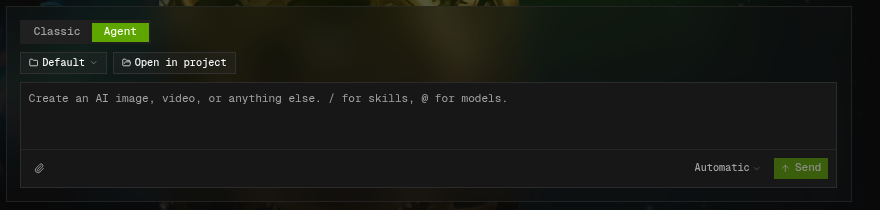
In Agent mode, type / for skills and @ for models.
Type @seedance to list every Seedance 2.5 and Seedance 2.0 mode. Keep typing @seedance 2.0 and the list narrows to the three Seedance 2.0 options: Text to Video, Image to Video and Reference to Video. Pick the one you need.
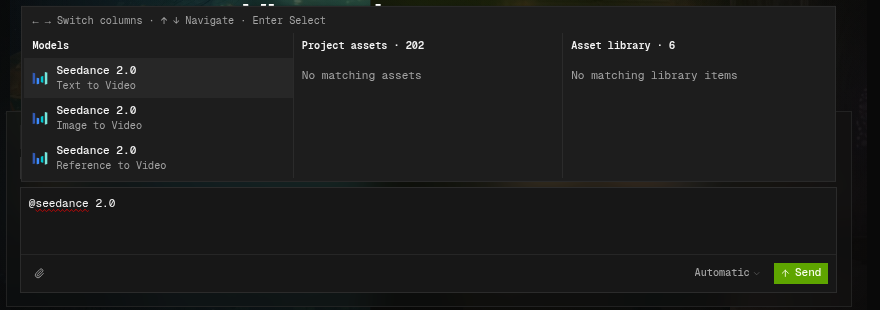
Type @seedance 2.0, then choose Text to Video, Image to Video or Reference to Video.
From there, you do not need to configure settings by hand or polish the prompt yourself. Tell the agent in a few sentences what kind of video you want, and it refines the prompt and sets the parameters for you. This is especially handy with reference-to-video: there is no need to spell out what Image1 or Video1 is, because the agent analyzes your uploads and writes the prompt and settings on its own.
Better still, if you are not happy with a result, just tell the agent what is wrong. It adjusts and generates again, so you do not have to figure out which line of the prompt caused the problem or keep rewriting a long, complicated prompt.
Tips: Test Small, Then Scale Up
AI video generation is not cheap, so start with a low resolution (such as 480p) and a short duration (such as 4 to 5 seconds). Once the framing, motion and pacing look right, raise the resolution and length for the final version.
You can also run your tests on a more affordable model such as Wan 3.0. And for simple jobs, such as motion effects for a web page, our testing found Wan 3.0 fully up to the task, so there is no need to reach for a pricier model like Seedance 2.0.
Try Seedance 2.0 on PoloX AI
Conclusion
Whether you want to turn a single sentence into a clip, bring a still image to life or blend several files into an entirely new video, Seedance 2.0 can handle it. On PoloX AI, you can fine-tune every setting in Classic mode, or hand the job to the agent and create and revise through chat. Start with low-cost settings, find a direction you like, then scale up. You will get the video you want while spending less along the way.
Ready to start? Open the generator on PoloX AI and pick Seedance 2.0.