
You know the feeling: several people in one frame, you say “change the clothes to red,” and the model recolors everyone’s outfit. Trying to name one person in text—“the second from the left in the plaid shirt by the door”—gets messy fast when the group is crowded. Classic image editing has always been about which as much as what. A prompt alone is a weak way to disambiguate.
PoloX’s answer is point-and-click image editing. On the AI image editor, Annotate lets you drop numbered markers on the targets you mean, add a short note for each, then generate. Mark the person or object—no need to describe which one in a paragraph.
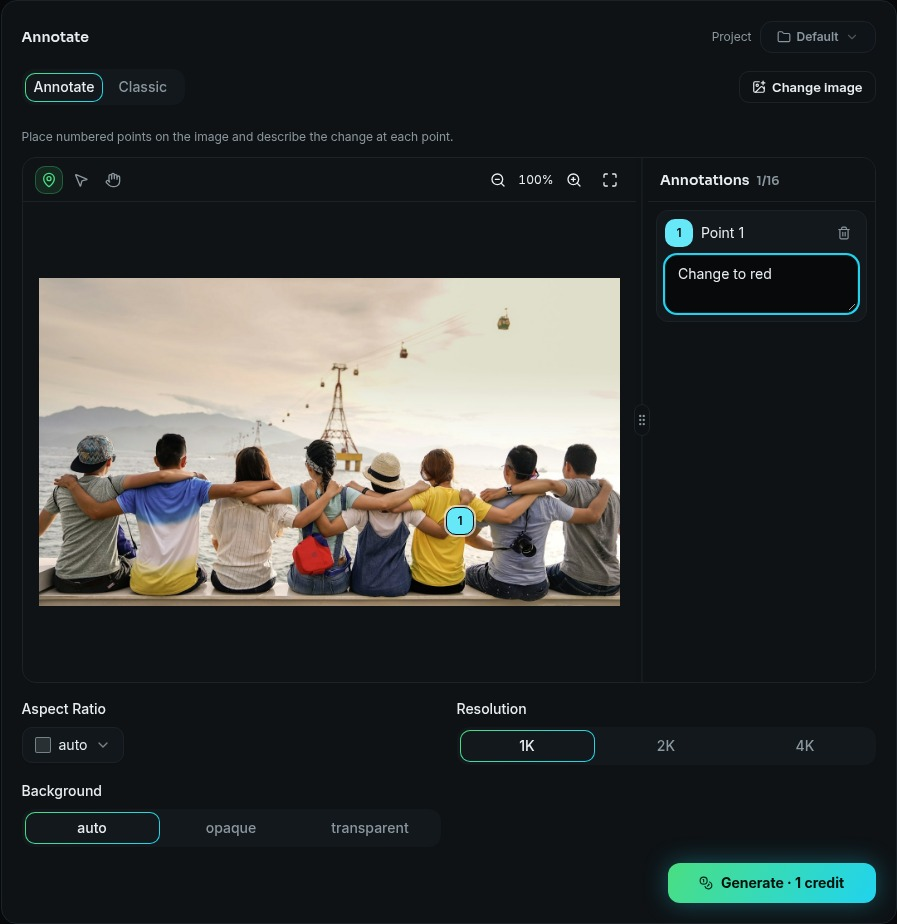
PoloX Annotate — point-and-click image editing
Hard case: change only one person in a group photo
A text prompt like “change the clothes to red” can recolor everyone; a point marks which person.
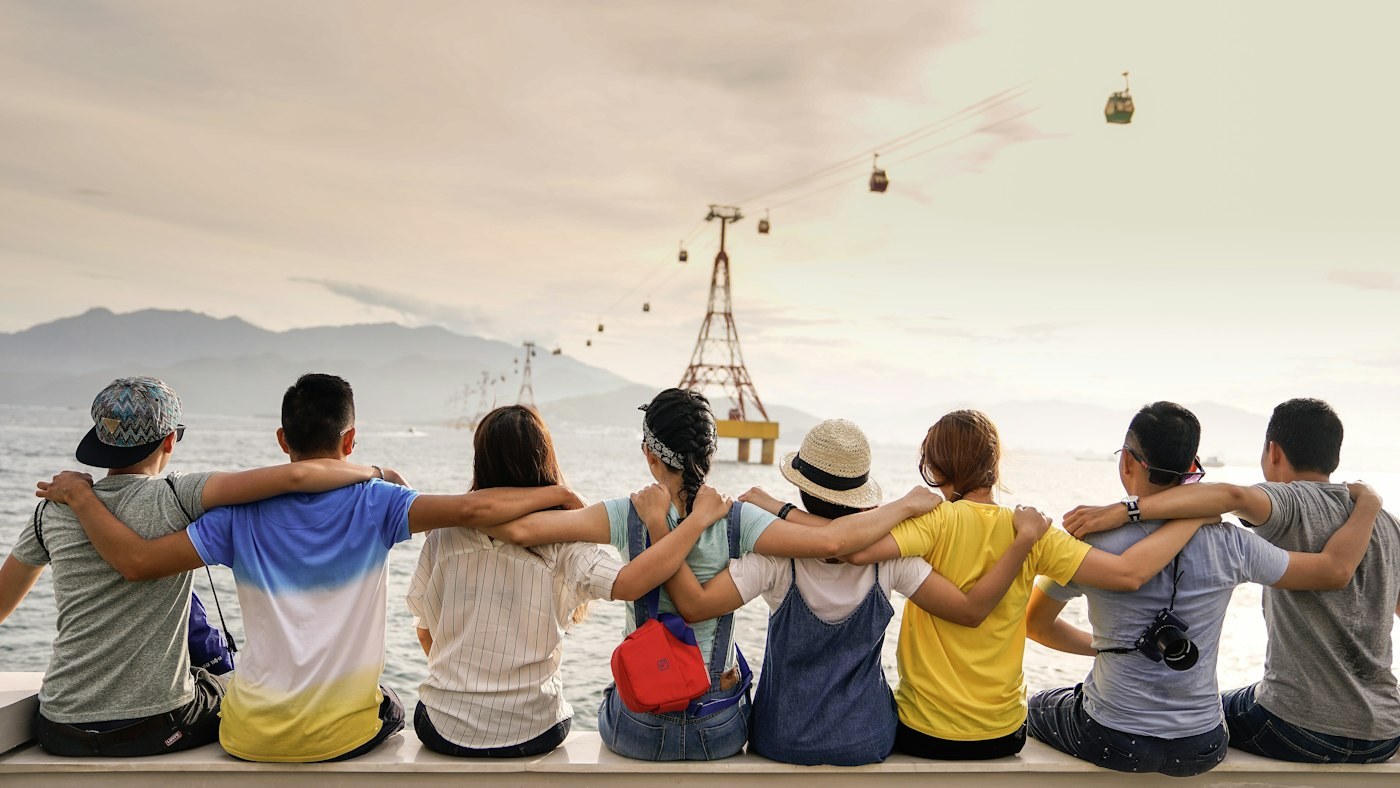
Before
Annotate (point 1 · Change to red)
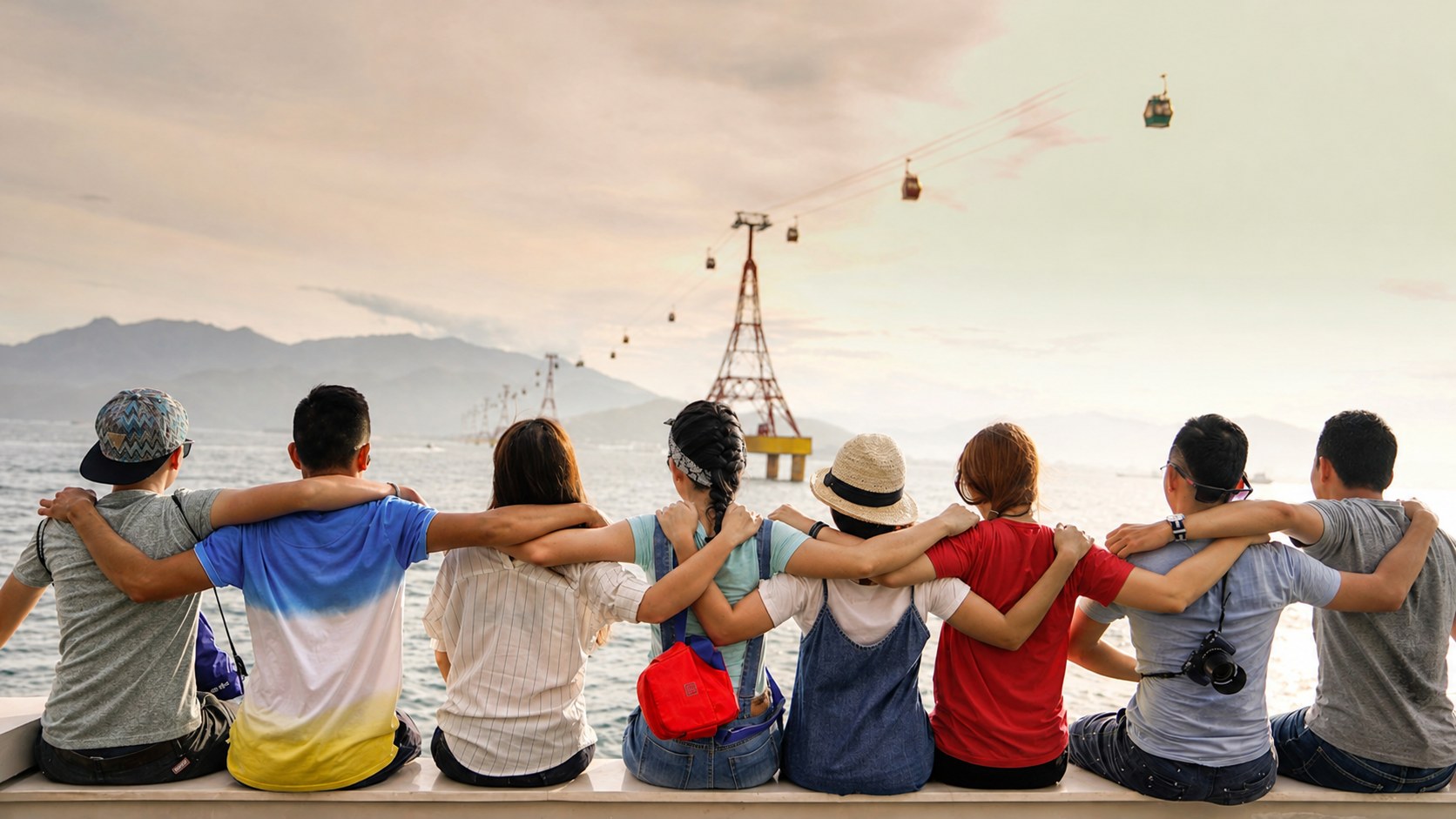
After
If you have been searching for a point and click AI image editor workflow—or simply how to annotate image AI style without a wall of disambiguation text—this is the path: mark points, edit photo, keep the instruction short.
Why a long prompt is not enough
Text prompts are great for mood, style, and overall direction. They are weaker at answering: which person’s jacket, which product on the shelf, which chair in the corner—especially when many similar targets share the frame.
In a group photo, “make the clothes red” can recolor every outfit in sight. You then pile on “only the person in the middle wearing the white shirt,” and the description gets long and brittle when people overlap or dress alike. Marking points skips that layer: each marker says “this one,” and the short note says “do this.” Together they turn AI annotate edit into a clear handoff: target first, instruction second.
That is the core of annotated image editing on PoloX—click to edit image AI, then keep the note brief. You are not fighting the prompt to restate which target; you are pointing at it.
How point-and-click editing works on PoloX
Open the tools page and try point-and-click editing. The Annotate flow mirrors three simple steps (the same ones on the live tools page):
Upload — Add the photo you want to edit.
Mark & note — Tap points on the targets and type a short instruction for each.
Generate — Create the edited result from your annotations.
You can still use Classic prompts on the same AI image editor when you want a text-only pass. When many similar targets share the frame and you need to disambiguate first—edit photo with points—Annotate is the path built for the job.
Tips for clean annotations
Place the marker on the center of the target (that person, that garment, that object), not far away in empty space.
One idea per note: “change to red,” not a paragraph that also names “second from the left in plaid.”
Use as many points as the edit needs; when many similar items appear, mark only the ones you intend to change.
Prefer a clear source photo where targets are easy to tell apart so markers land cleanly.
Before and after, side by side
Think in before/after pairs. Before: a group in similar outfits, or several clutter items in the background. After: the targets you marked follow the notes—for example only that one outfit turns red, while the others stay as they were.
One pass, multiple points
You do not have to run three separate edits. Place several markers in a single generate—that is how to edit part of an image with AI when the targets are scattered and each one needs its own pick.
Example set:
Point 1 on one person’s hair → “change to warm chestnut brown”
Point 2 on that coffee cup in the background → “remove this object”
Point 3 near an empty shelf → “add a small plant here”
In one annotated pass you change hair color with an AI click, remove an object from a photo with AI points, and add objects to a photo with AI markers. Each point picks the target so you do not have to spell out “which strand” or “which cup” in text. The generate step reads the whole set of marks together, so the result stays coherent instead of stacking three unrelated regenerations.
Keep each note short. The marker already carries location and identity; the text only needs the change.
Where point-and-click shines
Portraits and group shots
Hair, makeup, jewelry, or changing only one person in a group—these jobs benefit from disambiguation first. Mark the exact person or feature so you skip long “third from the left, glasses” descriptions. Crowded frames and overlapping poses are where mark points edit photo saves the most wording.
E-commerce product shots
When several SKUs or accessories share a frame, swap one label or clean one scuff without describing “the box on the second shelf, left side.” Mark points on the product you care about; leave other catalog items unmarked, or give them their own points with different notes.
Decluttering and remove clutter
Background chairs, cables, reflections, or a passerby at the edge—when similar clutter piles up, tap the one you mean, note “remove,” and generate. Mixed cleanup jobs (remove one object, soften another, mark the subject separately) are a natural fit for multi-point Annotate.
For focused effect workflows you can also open related skills: remove objects from photos for cleanup, and background removal for cutouts. The tools Annotate flow remains the flexible home when several different marks belong in one pass, each aimed at a different target.
Tools for annotate, skills for focused effects
Use the tools page when you want general annotate editing—any mix of marks and notes aimed at multiple targets on one image. Use skills when you already know the effect and want a guided path:
Point-based image editing — mark points to edit in a focused skill flow
Remove objects from photos — cleanup and declutter
Background removal — isolate the subject
Edit text in images — fix or replace on-image copy
Skills and the editor complement each other; for this guide, the primary call to action stays the tools Annotate experience on the AI image editor.
Start editing with points
Long prompts guess which one. Points specify. Upload a photo, drop markers on the targets you mean, add a short note each, and generate—without describing which person in a paragraph.
Open the AI image editor and try point-and-click editing on your next group shot, product frame, or declutter pass—locate first, then edit, without the disambiguation essay.